Using Assessed Term Tags
Using Assessed Term Tags
Assessed Term Tags allow schools to identify which curriculum outcomes are intended to be assessed during each term (assessment window). Once enabled, the relevant term tags appear against curriculum statements and can be used when assessing pupils in Classes & Groups / Student Assessment and reviewing Gap Analysis.
Enabling Assessed Term Tags
Your assessed term tags are already 'enabled' as default.

Select 'View Tags' to see the tags configured for your school. These are bespoke to the assessment window labels and term numbers in your site.
For example, these may include:
- A1 – Autumn 1
- A2 – Autumn 2
- Sp1 – Spring 1
- Sp2 – Spring 2
- Sm1 – Summer 1
- Sm2 – Summer 2

Applying term tags in My Ladders
To apply term tags, go to Ladders > My Ladders.
Select a subject from the drop down menu and then click on a ladder.
Click 'Edit Tags'.
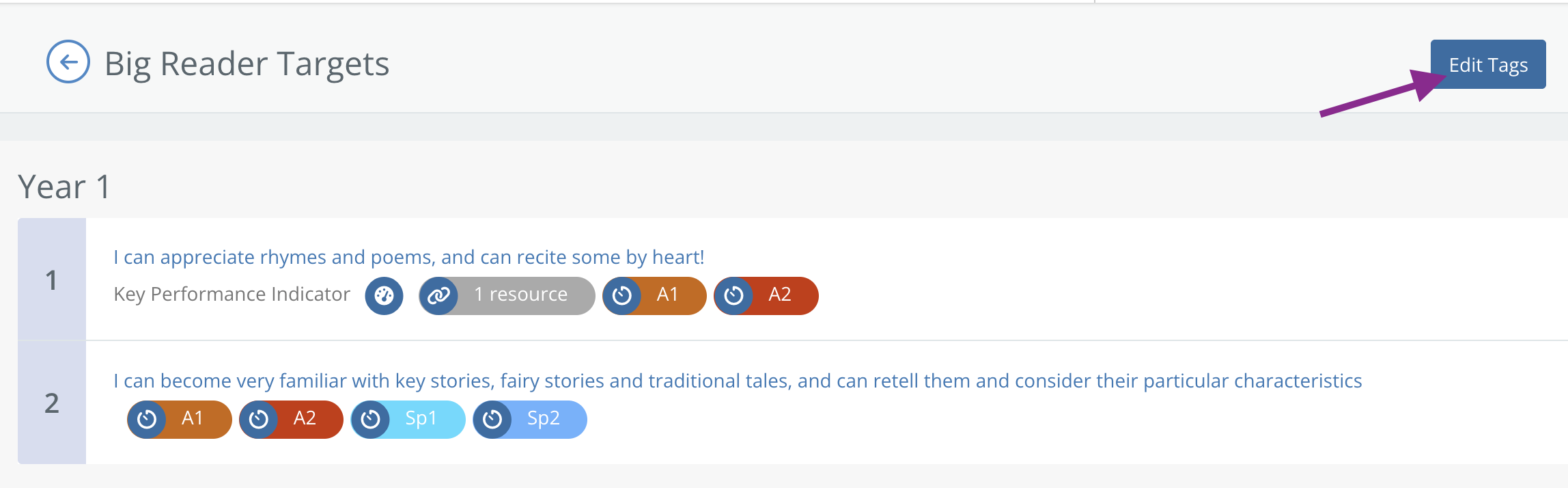
Select the tags by clicking on 'Term Tags' to the right of the outcome.
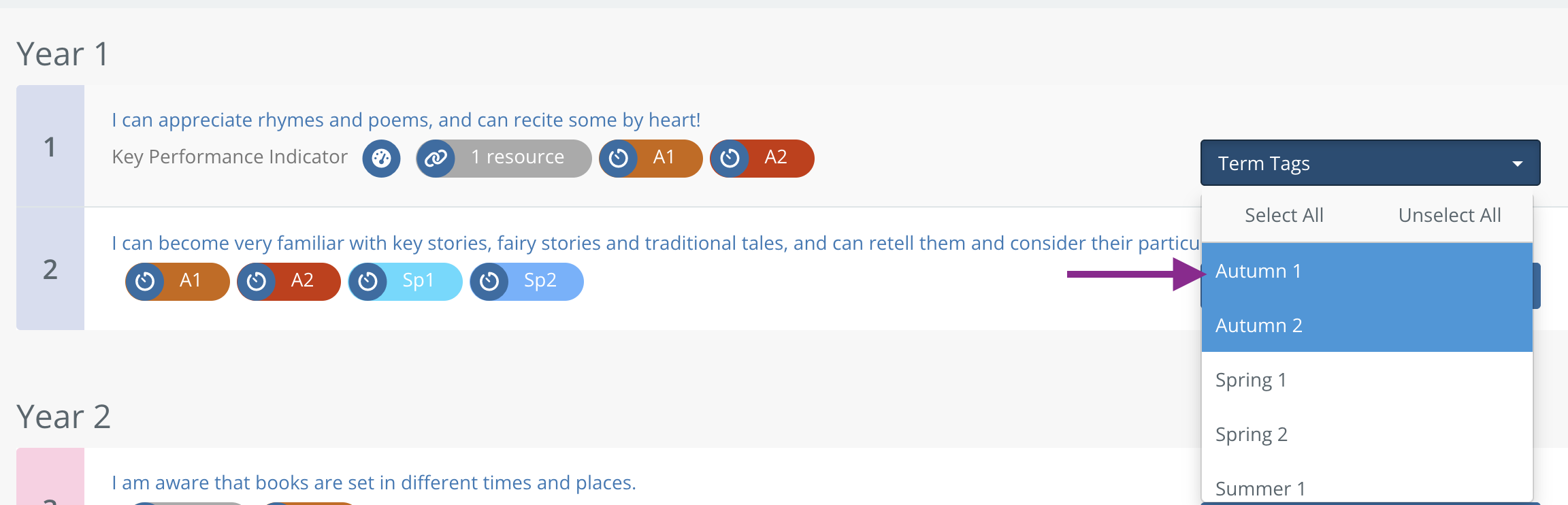
Click on the assessment window to add it to the outcome. Click on the assessment window again to remove it.
Use Select All to apply all tage, or Unselect all to remove all tags.
Once you've finished tagging each rung, click 'Save tags'.

Viewing term tags in My Ladders
Click 'Ladders' > 'My Ladders'.
Select your subject and click on a ladder.
The coloured tags displayed next to a statement show the terms in which that objective is intended to be assessed. A statement can have more than one term tag where appropriate.
This makes it easy for teachers to see which objectives are relevant to an assessment period.
Using term tags when assessing pupils
Go to Classes & Groups / Student Assessment page and select the required:
Academic Year → Class/Group → Subject → Rung Year
The curriculum objectives will then be displayed for assessment.
Use the filter on the left-hand side to select a term tag, such as A1, A2, Sp1, Sp2, Sm1 or Sm2.
Selecting a tag filters the assessment screen so you can concentrate on the curriculum objectives associated with that assessment period.
You can remove the selected tag or choose another tag whenever you need to change the objectives being displayed.
Using term tags in Gap Analysis
Assessed Term Tags are also visible within Gap Analysis.
Click on Gap Analysis, then select the relevant year group or class/group, subject and rung year.
The term tags appear alongside the curriculum objectives, making it easier to identify when each objective is intended to be assessed while reviewing attainment across the class.
This is particularly useful when looking for gaps in learning because teachers can distinguish between objectives that should already have been assessed and those planned for a later point in the academic year.
Why use Assessed Term Tags?
Assessed Term Tags help schools align assessment with their curriculum sequence. They provide teachers with a quick visual indication of when outcomes should be assessed and allow assessment screens to be filtered to the outcomes relevant to a particular term.
Please note: Assessed Term Tags are configured for your school. If you need your term structure or tags changed, please contact Learning Ladders for support.